

📩 Ticket management
After creating a ticket, you can track and manage it through “Support → Tickets.”
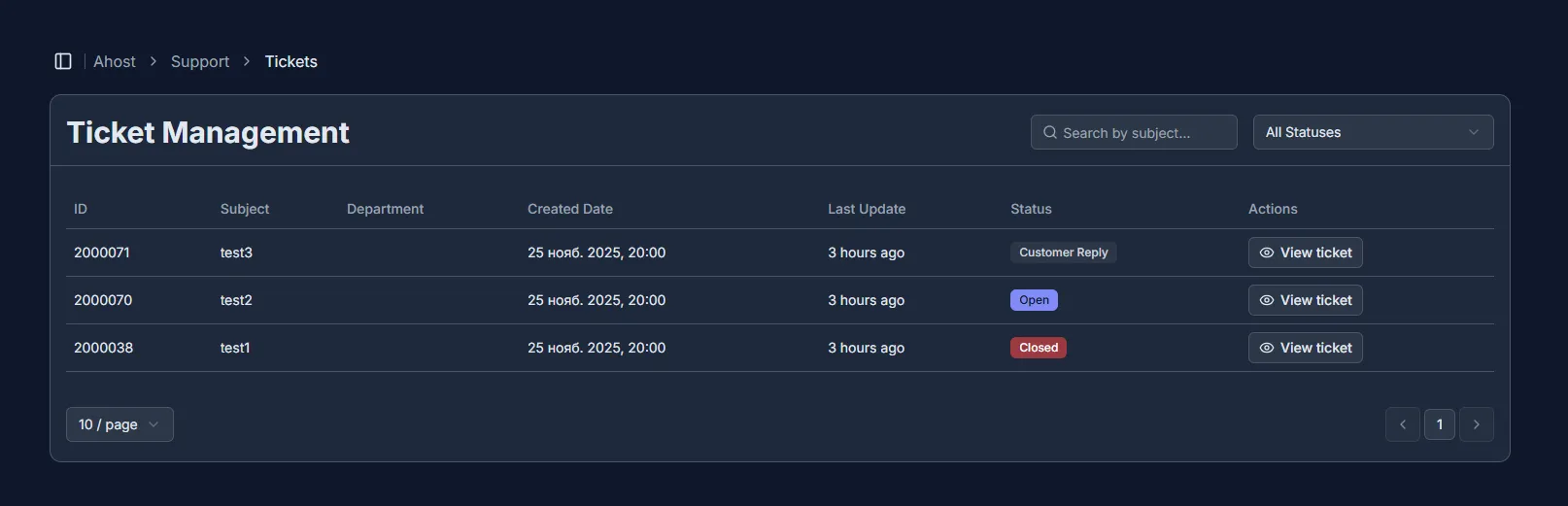
The table displays a list of tickets with key information:
- ID — the unique ticket number.
- Subject — a brief description of the issue.
- Department — the division your request was sent to.
- Creation / Update date — the time the ticket was submitted and last modified.
- Status:
- Client reply — waiting for support response.
- Admin Reply — waiting for your response.
- Open — the ticket is active, support has not replied yet.
- Closed — the request has been completed.
To view the conversation, click “View ticket.”
To send a message:
- Open the ticket.
- Enter your text in the message field.
- Attach a file if needed (paperclip icon).
- Click the send button.
The conversation history is displayed as a chat between you and the support specialists.
If your issue is resolved, click “Close ticket.” It will change to “Closed” status but will remain available for viewing.
At the top of the page, the following tools are available:
- Search by subject — quickly find a specific ticket.
- Status filter — display only open, closed, or waiting-for-reply tickets.
Recommendations:
- Keep your subject short and relevant.
- Do not create duplicate tickets — reply in the existing one.
- Provide as many details as possible: time, steps, logs, screenshots.
- Check your notifications — support may ask for clarification.