

↪️ VNC
To manage VNC access:
- Go to the My Services section in the left menu.
- Select the desired server and click View details.
- The service details page will open.
Enabling VNC
- Open the management menu On the service page, find the System Controls block and click Manage VNC.
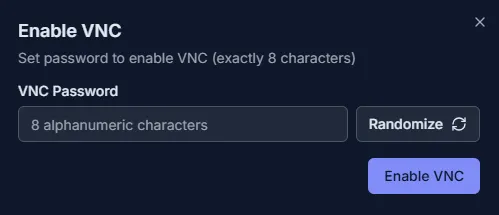
- Set the password In the Enable VNC window, enter an 8-character password. You can type your own or click Randomize to generate one automatically.
- Confirm enabling Click Enable VNC. A notification will appear: VNC enabled successfully.
Verify the status In the Main Information section, the VNC status will change to Enabled, and a connection link for VNC client access will appear.

Disabling VNC
- Open the management menu In the same System Controls block, click Manage VNC again.
- Select disable In the pop-up window, click Disable VNC. A notification will appear: VNC disabled successfully.
- Verify the status In the Main Information section, the VNC status will change to Disabled.