

💶 Balance and payments
-
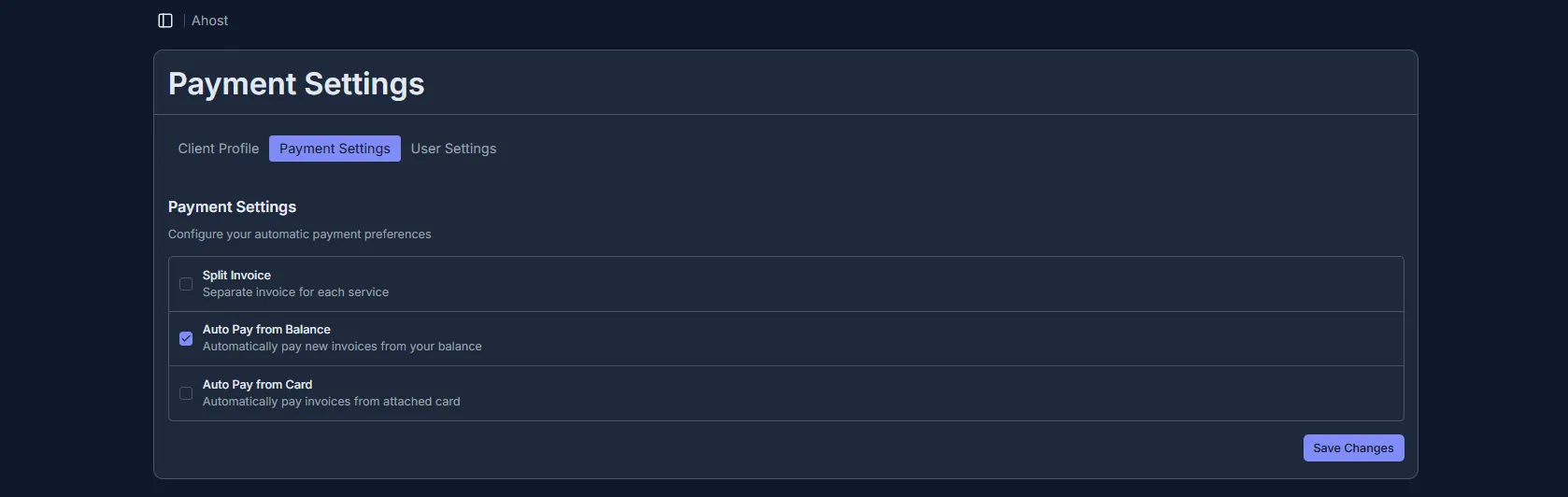
Payment settings
- Split bill – use this if you share expenses with another user or seller.
- Auto payment from balance – new invoices will be automatically paid from your available balance.
- Auto payment from card – invoices are automatically paid using the linked bank card.
- Confirm changes by clicking the button located below this block.
-
Balance top-up
- In the left menu, under the balance, click the “Top up balance” button.
- Choose the amount and payment method (for example, bank card or cryptocurrency).
- You will be redirected to the payment service according to your chosen method.
- Complete the transaction and wait for the funds to appear in your account.
-
Cart and order placement
- Choose the configuration and payment period by selecting the necessary options on the service creation page.
- Add the required number of services to the cart or pay instantly by clicking “Buy now.” 2.1) If you choose instant payment, you will be redirected to the order page. Select your preferred payment method and complete the transaction. Shortly after, the paid order will appear in “My Services.” 2.2) If you add services to the cart, go to the cart menu using the corresponding button in the side menu and click “Place Order” to create an invoice. Select your preferred payment method and complete the transaction. Shortly after, the paid order will appear in “My Services.”
-
My invoices In the “My invoices” section, all issued invoices are displayed. The full list can be sorted using the option in the top right corner:
- Paid – marked with a green “Paid” status; the invoice details show the order summary, amount, and payment date.
- Unpaid – marked with a red “Unpaid” status. To pay: click “View details,” select a payment method (bank card or cryptocurrency), and click “Pay now.”
- Canceled – marked with a gray “Canceled” status. This status appears when the user cancels the invoice or when the payment time expires.
